User Guide
Overview
The Arelle Inline XBRL (iXBRL) Viewer allows you to access, view and interact with tagged XBRL data in iXBRL documents from your web browser.
Key features include:
Full text search on taxonomy labels and references
View full details of tagged facts
Export tables to Excel
Visualise and navigate calculation relationships
Produce on-the-fly graphs using XBRL data
Viewing the Report
The Inline XBRL Viewer consists of the following components:
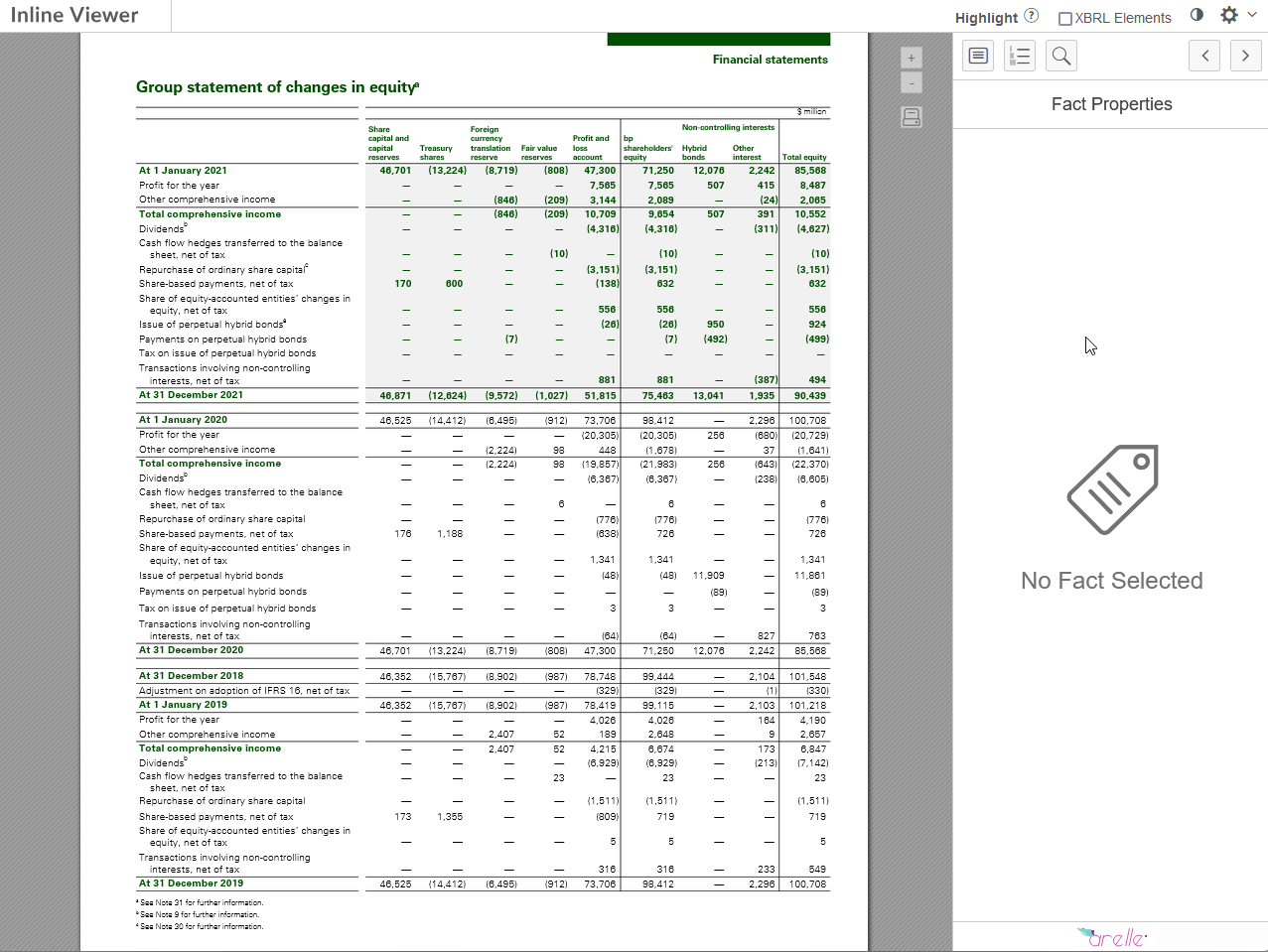
Viewer pane - This area, taking up most of the screen, shows the filed document.
XBRL inspector - This area on the right shows information about the currently-selected fact and allows navigation of the document using XBRL Information.
Toolbar - This area along the top of the viewer contains general controls for the viewer..
The viewer pane allows you to browse information in the report that has been tagged as XBRL by clicking on it to see tag details in the XBRL inspector. The viewer pane has controls for zooming and printing the Inline XBRL document, andalso for exporting the data in individual tables.
You can also navigate between facts in the document using the left and right arrows at the top of the XBRL inspector. Moving between facts will move the viewing area to the selected fact and highlight the tagged information in the viewer pane. Some XBRL tags contain information that is not shown in the document. These are referred to as “hidden facts” and are indicated by a “hidden fact” message at the top of the XBRL inspector when selected. No information will be highlighted in the viewer pane when a hidden fact is selected.
Highlighting Facts
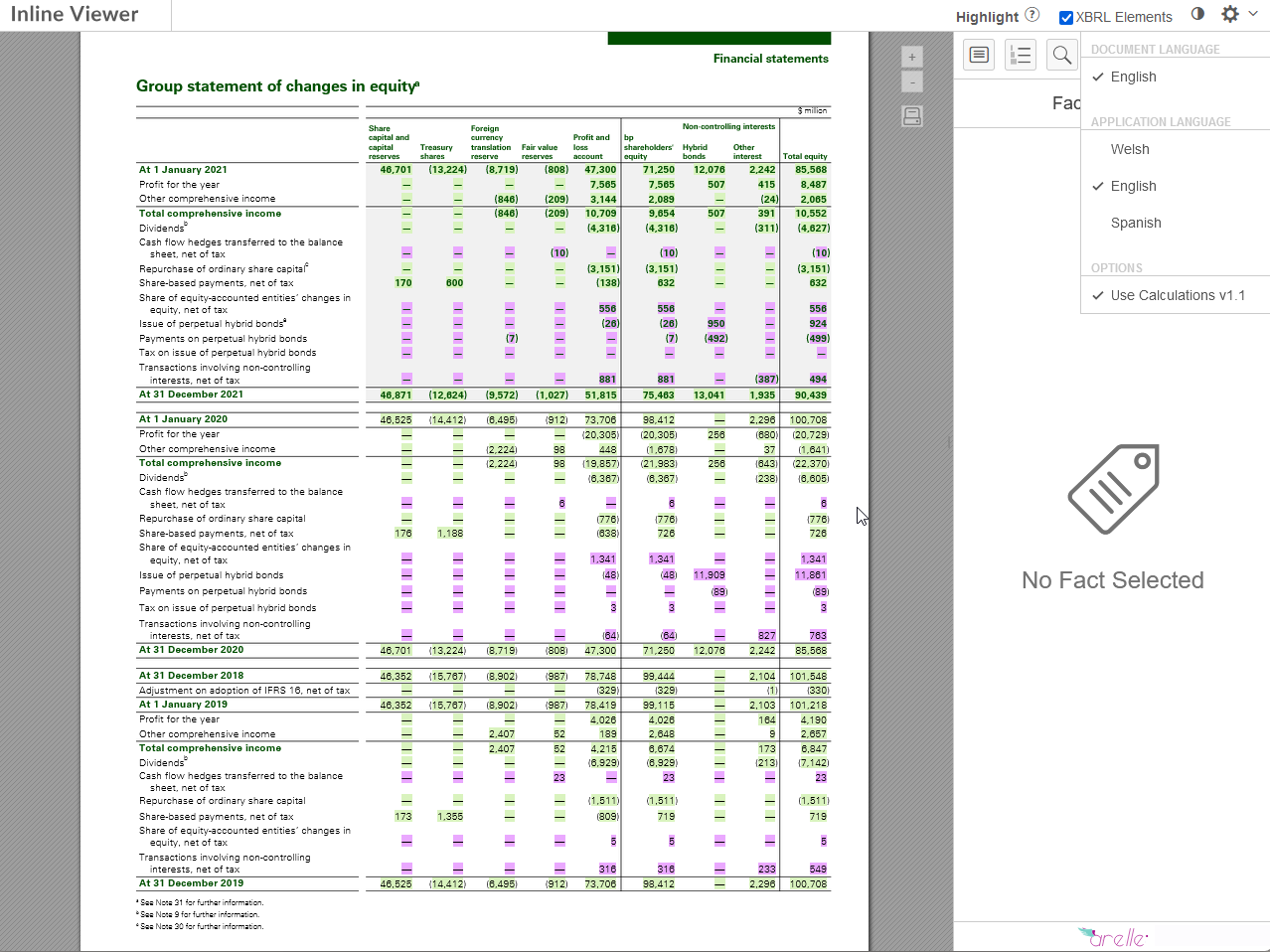
The “Highlight XBRL Elements” checkbox on the toolbar can be used to highlight all tagged information in the document. Different colors represent different namespaces, which can be seen by hovering over the (?) icon. Note that not all of the namespaces used by the document may be visible if, for example, a given namespace is only used in dimensions.
Fact Properties
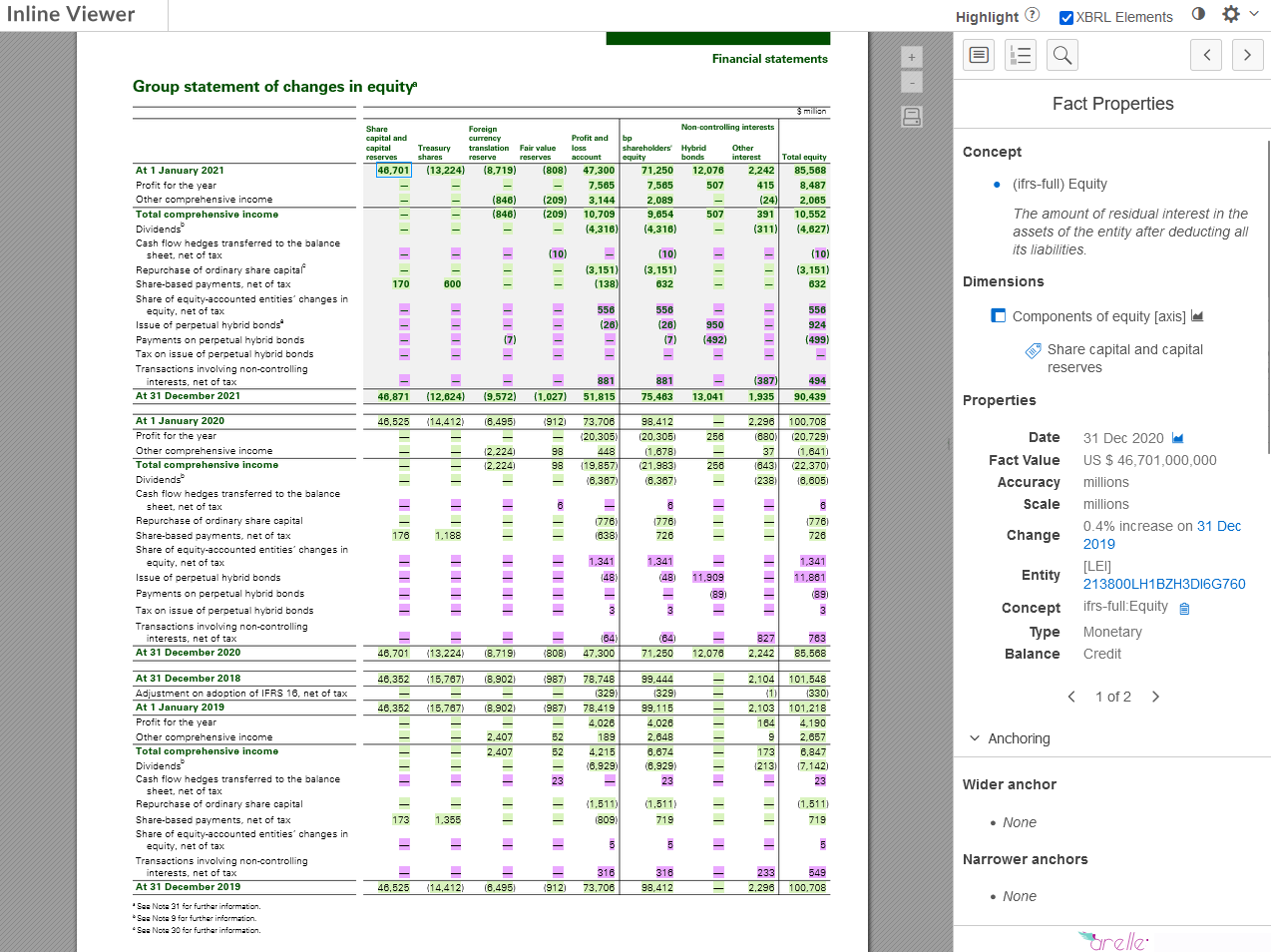
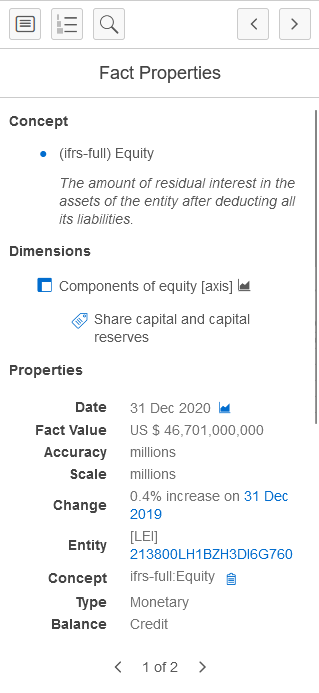
When an XBRL fact is selected, information about the fact will be shown in the XBRL inspector. This includes:
Concept name
Concept description
Dimensions (if any)
Date or date range
Fact value
Accuracy
Scale
Change
Entity
Concept
Type
Balance
Concept Labels
Concept References
Anchoring information (if applicable)
Calculations (if applicable)
Footnotes (if applicable)
Sections
Analysis charts
The icon next to the Date property will display a chart of the currently-selected fact compared against correspondingly-tagged facts from other periods in the report. If the fact has dimensions, each dimension will also have an icon you can click to show a chart of the currently-selected fact compared against correspondingly-tagged facts with different values for that dimension. For example, if a dimension is used to provide a breakdown by business segment, the chart will show the correspondingly-tagged fact for each business segment. Dimensions shown on the chart can be toggled using the buttons below the chart. Up to two dimensions can be plotted at a time.
Change from prior period
The Change property shows the percentage change of the current fact compared to the corresponding value from the prior period, if such a tagged value exists. Clicking on the comparative period will focus the fact inspector on the prior period fact.
Entity information
The Entity property shows the entity identifier that the fact is reported against. Typically this will be the same for all facts in the report and will be either the UK Company Registration number or the Legal Entity Identifier. You can click the link to search the identifier on the Companies House or GLEIF website in a new browser tab.
Fact locations
If the current fact appears in more than one location in the document, the left and right arrow buttons at the bottom of the properties pane can be used to cycle through the different occurrences.
XBRL Inspector Panels
By default, the XBRL Inspector will show the Fact Properties panel, which shows information about the currently selected fact. The inspector has three other modes, which can be selected using the icons at the top of the XBRL Inspector:
Document Summary
Document Outline
Search
To return to the Fact Properties panel, click on the same icon again or use the back button to the left of the panel title.
Document Summary
The Document Summary mode shows information about the XBRL data in the document, including the total number of XBRL facts, the number of hidden facts and files included in the filing. The summary also includes the number of distinct concepts, dimensions and members in the report. You can click on the fact count to enter Search mode.
Note
The number of concepts will be less than the total number of facts, as concepts will often be reported for different periods and with different dimensions.
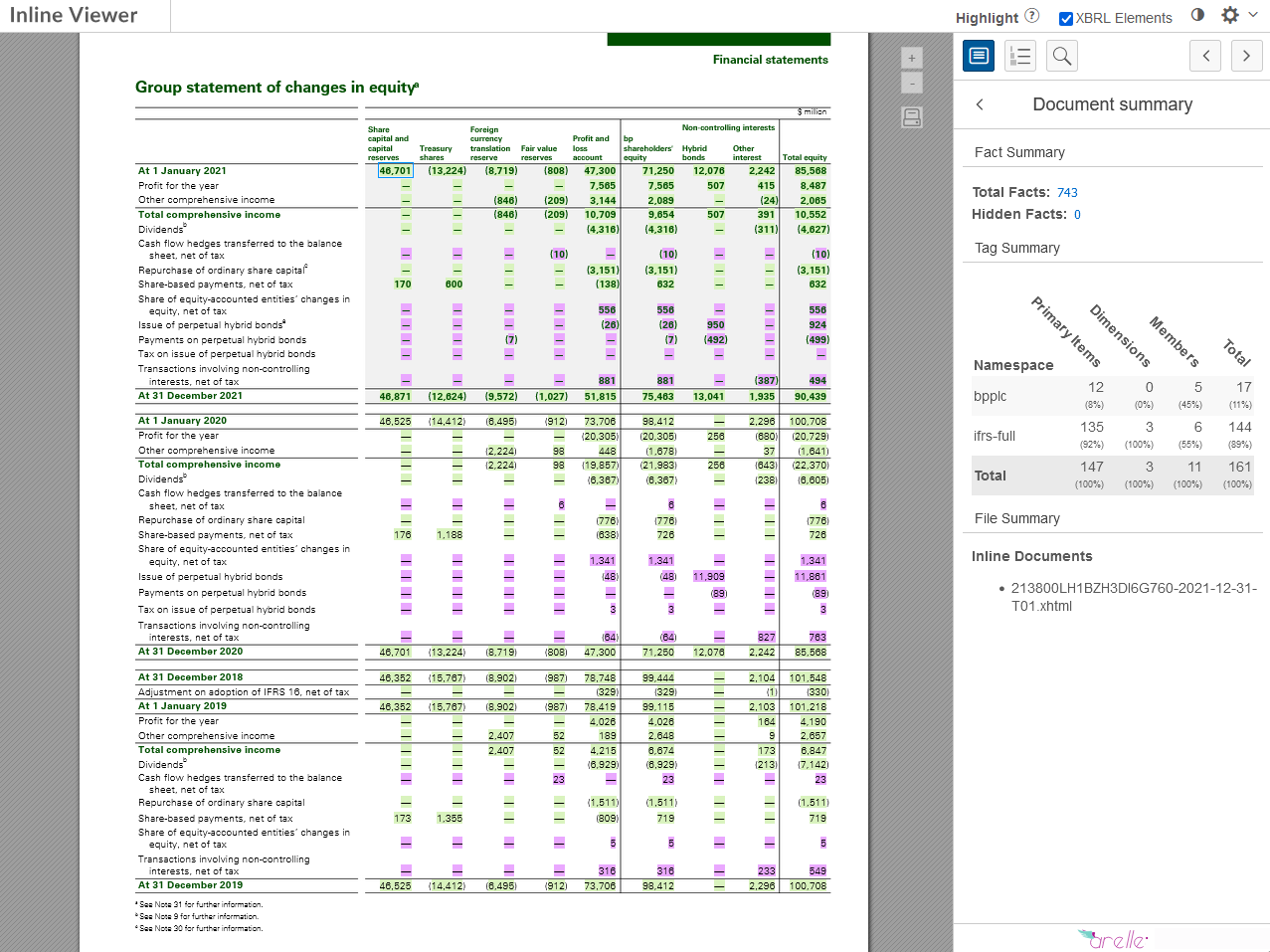
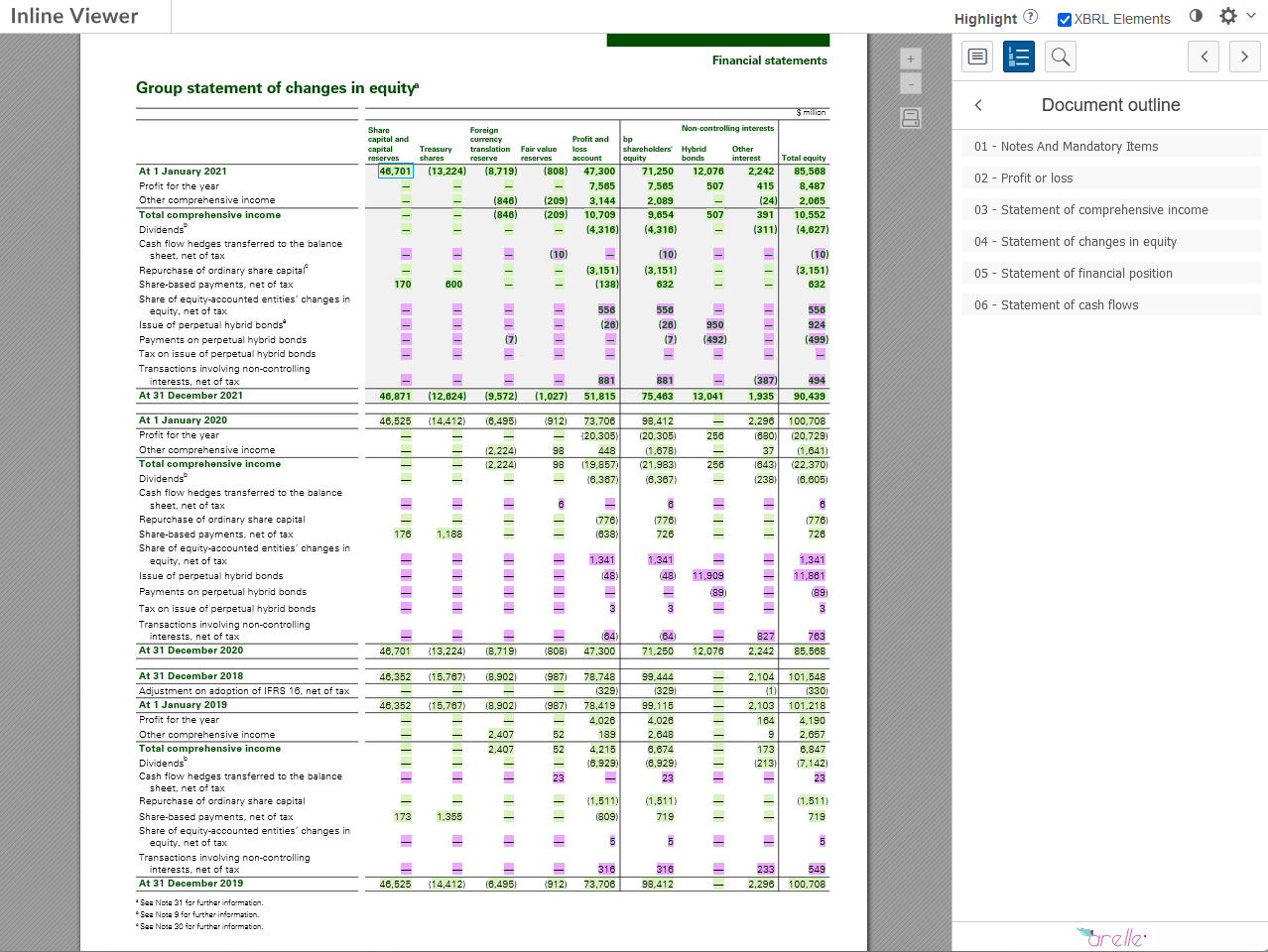
Document Outline
The List icon toggles the Document Outline panel, which displays sections of the document based on the structure of the XBRL Taxonomy used to tag the document. Select a section to move to the start of that section in the document.
Search
The magnifying glass icon toggles the Search panel, where a powerful search function allows you to find information in the document using XBRL data. By default, all XBRL facts in the document are displayed in the search results. You can use the search and filter controls at the top of the search panel to examine a fact or facts more closely.
Entering terms into the search bar of the Search panel shows a list of matching facts from the report. The search will match against information from the XBRL Taxonomy, including concept and dimension labels. The results are ordered according to match quality, with the best matches shown first. Entering multiple search terms will show all facts that match at least one term. Prefixing a search term with “+” will restrict the results to those that contain that term.
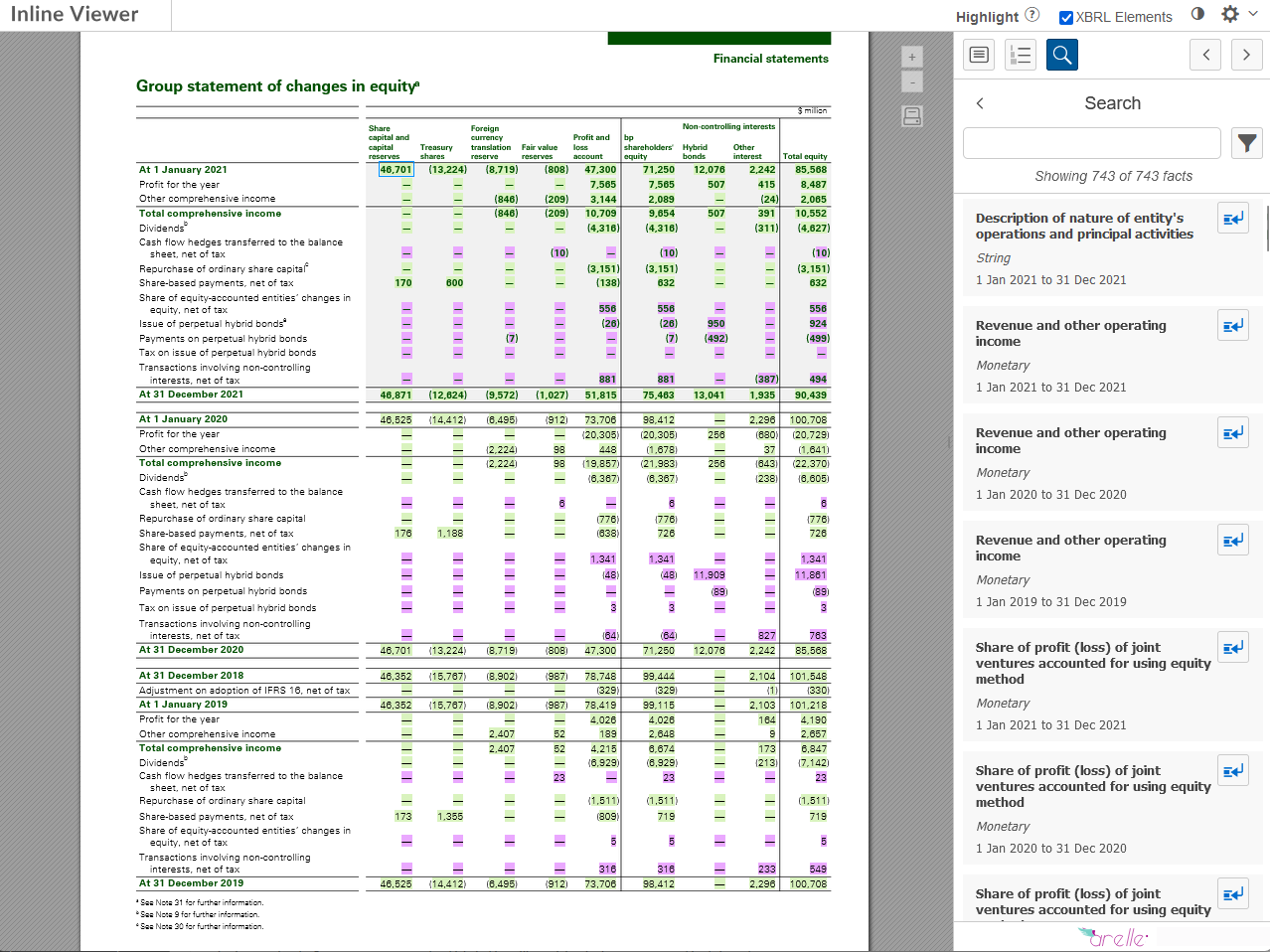
Selecting a fact in the results will scroll the viewer pane to that fact at its location in the document. Double clicking on a fact in the results or using the arrow icon will close the search panel and focus on that fact in the Fact Properties panel.
Search results can be customised using the filter functionality accessed using the filter icon to the right of the search bar. Apply filters by checking or unchecking boxes, by selecting the filter dropdown and making a selection, or by choosing an option from the filter category.
The filter icon will be highlighted to indicate when there are active filters, and a “reset” link will appear that will remove all filters. Clicking on the filter icon again will close the filter controls, but the filters will remain active.
Filters include:
Concept type
Fact value
Hidden (or visible) facts
Period
Namespaces
Types
Units
Scales
Dimension type
Calculations
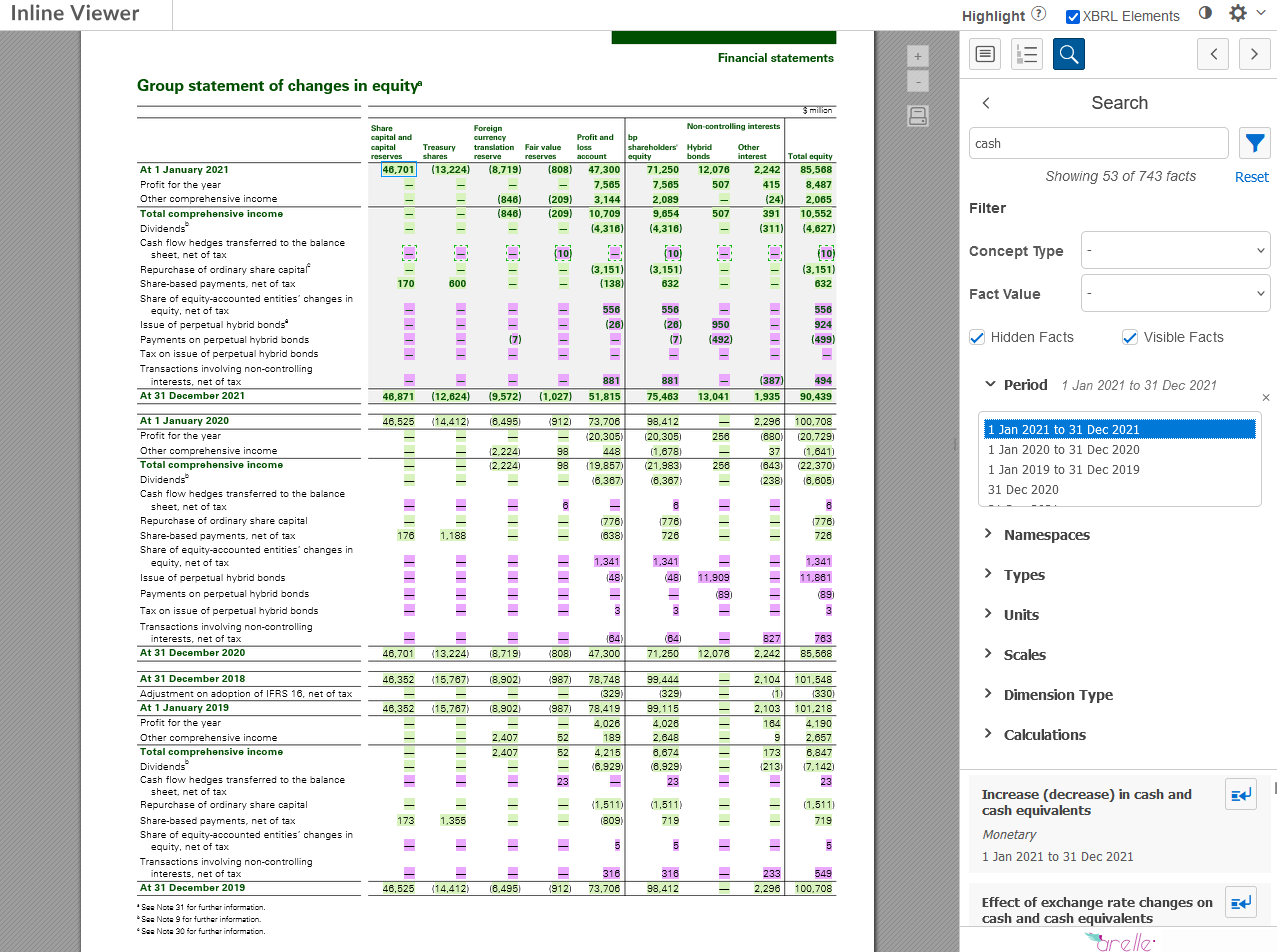
Table Export
Tables containing XBRL tags have a green diamond icon in the top left corner. Mousing over this icon will show an “Export Table” link. Clicking this will export data from the table as an Excel spreadsheet.
The exported table will include the descriptions used in the document alongside the labels for the XBRL concepts and dimensions used to tag the facts in the currently selected document language. This feature can be used to review documents that have been prepared in a different language.
Toolbar Controls
Checking the “Highlight XBRL Elements” option on the toolbar will highlight all information in the document tagged with XRBL. The highlighting is colour-coded to indicate which taxonomy (or part of a taxonomy) was used to tag the fact. You can view a key for highlight colours by mousing over the question mark icon in the toolbar.
The toolbar also has the following controls:
Dark Mode - selecting the dark mode icon at the top of the Fact Properties panel will toggle “dark mode”. Dark mode changes the interface to use light text on a dark background.
Settings Menu - the gear icon on the right of the toolbar provides a menu with a number of viewer settings. These include:
Document language – if the XBRL taxonomy used to prepare the document contains more than one language, you can choose the language here to adjust the language used when displaying labels for concepts, dimensions and members.
Application language – this controls the language of the Inline XBRL Viewer user interface.
Calculations mode - the “Calculations v1.1” checkbox controls how numeric facts in the document are checked against calculation relationships in the XBRL Taxonomy. It is recommended that Calculations v1.1 is enabled.